 Sign Up
Navigating
the Authoring Tool
Get familiar with the SceneCraft interface and learn how to build, edit, and customize your story scenes with ease.
SceneCraft Dashboard
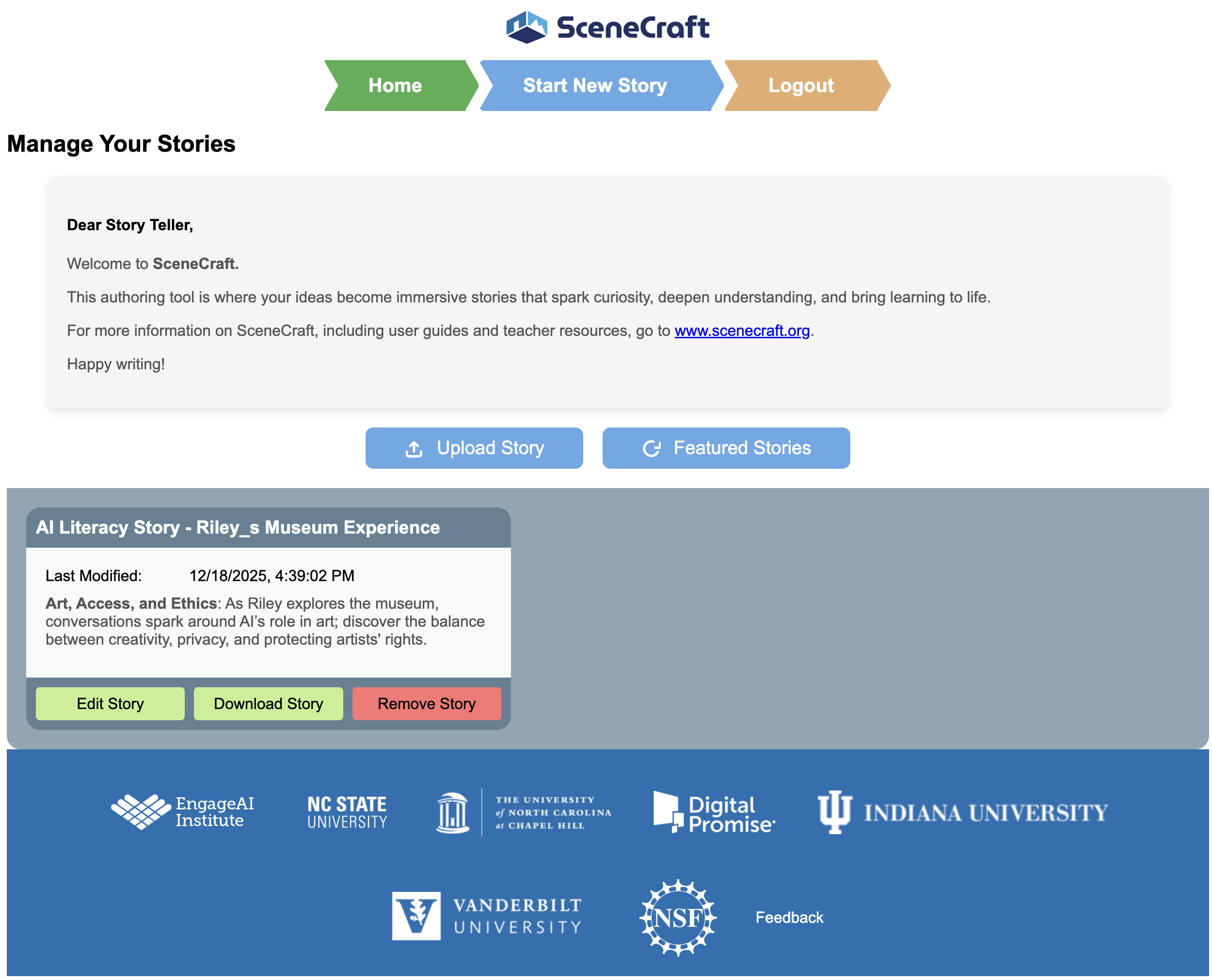
This dashboard gives you control over your saved and uploaded stories. From here, you can:
Start New Story to start building a new SceneCraft story
Upload Story to use someone else's story file to edit and use for your own students
Edit Story to continue editing, download a printable script, and access the story link for students.
Download Story to download a file that can be used to share your story with other educators.
Remove Story to delete one you no longer need

Starting a New Story
Navigate to the toolbar at the top of the page and click on Start New Story. This will take you to your story prompt page.

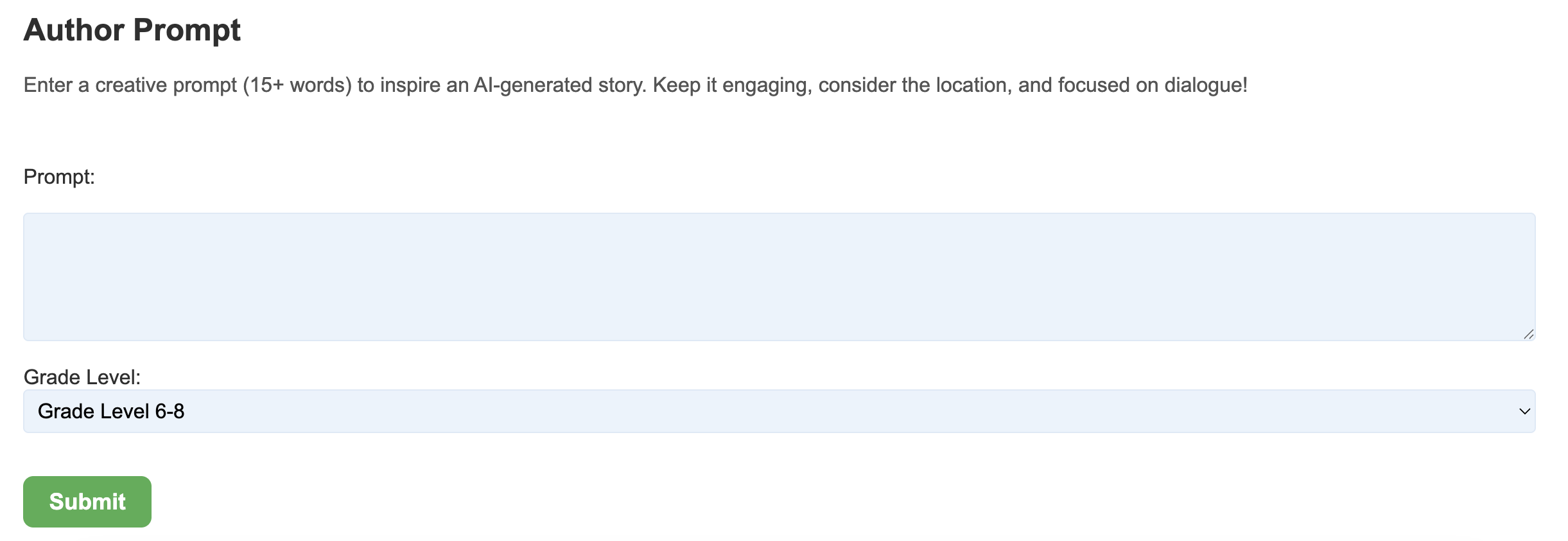
Author Prompt
On this page, you will be able to:
View a list of available characters and locations.
Access the Prompt input box.
Create and submit Author Prompt.
Once you have crafted your prompt, enter it in the blue box and hit submit to have SceneCraft generate your story draft.

Your Story Summary
On this page, you will be able to:
View the AI-generated story summary draft.
Review and edit the story summay directly in the text box.
Regenerate the story summary based on the previously entered prompt.

Your Story's Scenes
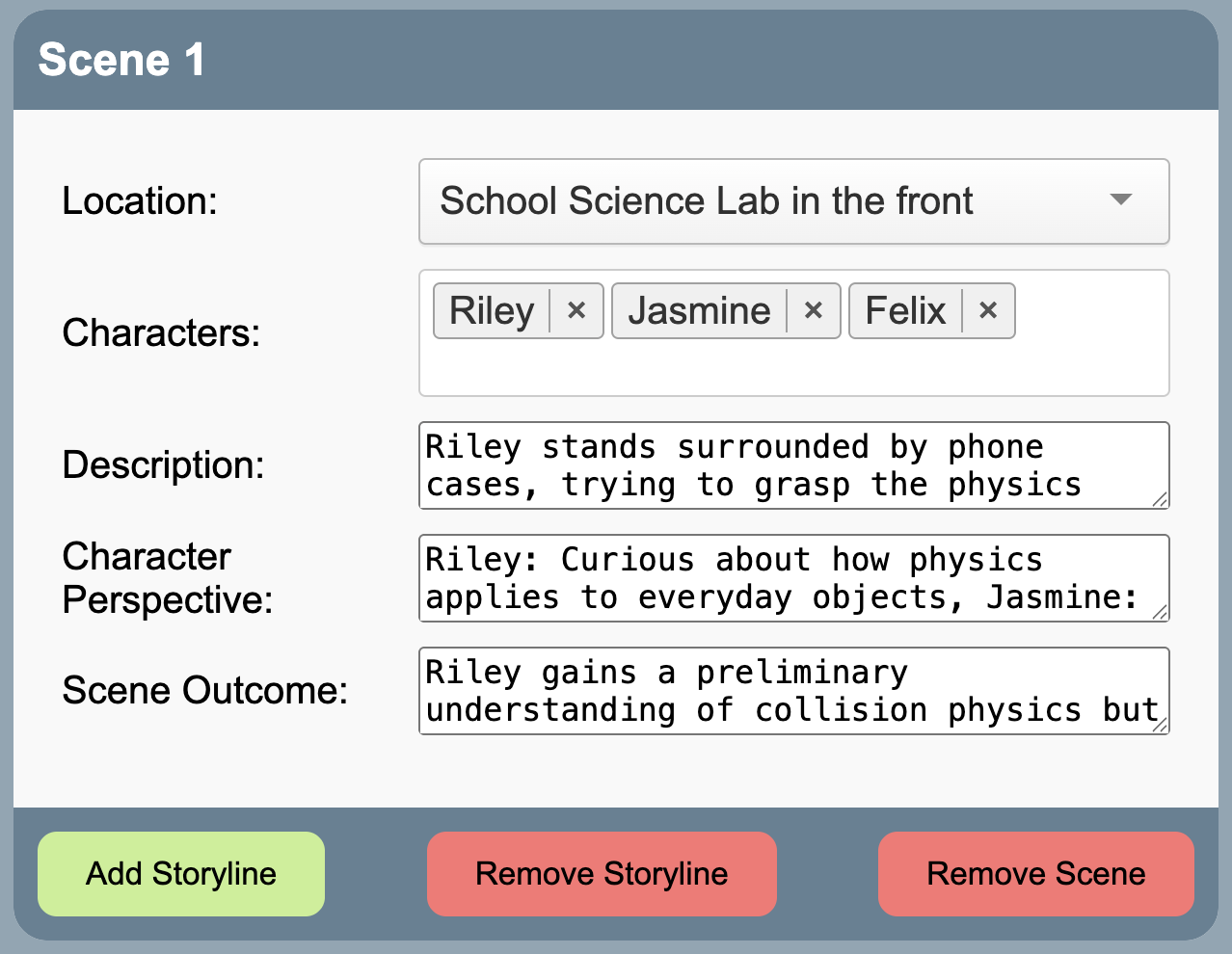
On this page, you will be able to:
Edit the number of scenes by adding or deleting scenes.
Review and edit the location and characters of each scene.
Review and edit the description and scene outcome of each scene.

Your Story's Dialogue
On this page, you will be able to:
View the generated scene dialogue.
Customize each scene further, including the way your characters move.

Your Published Story
On this page, you will be able to:
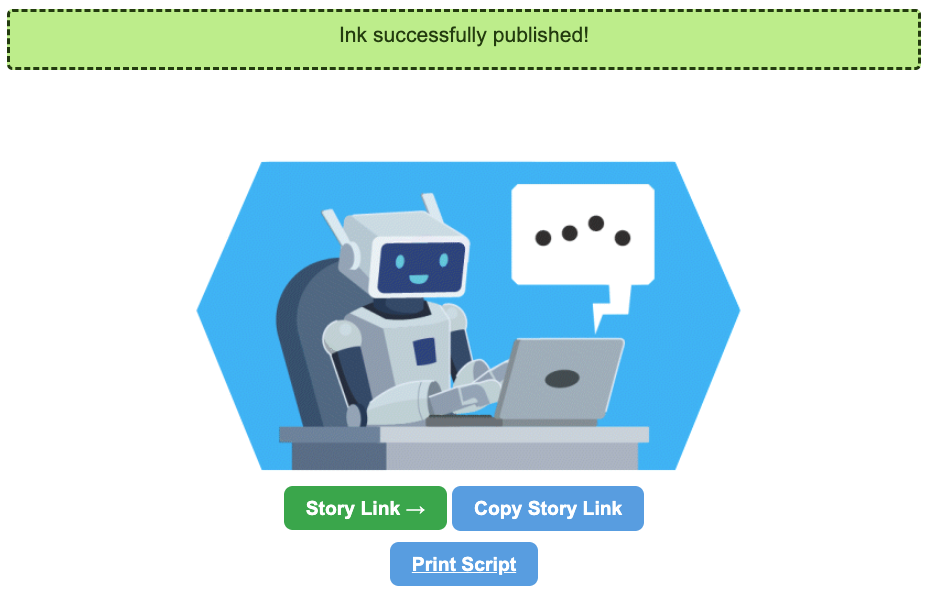
Gain access to your published story link,
Gain access to your story script,
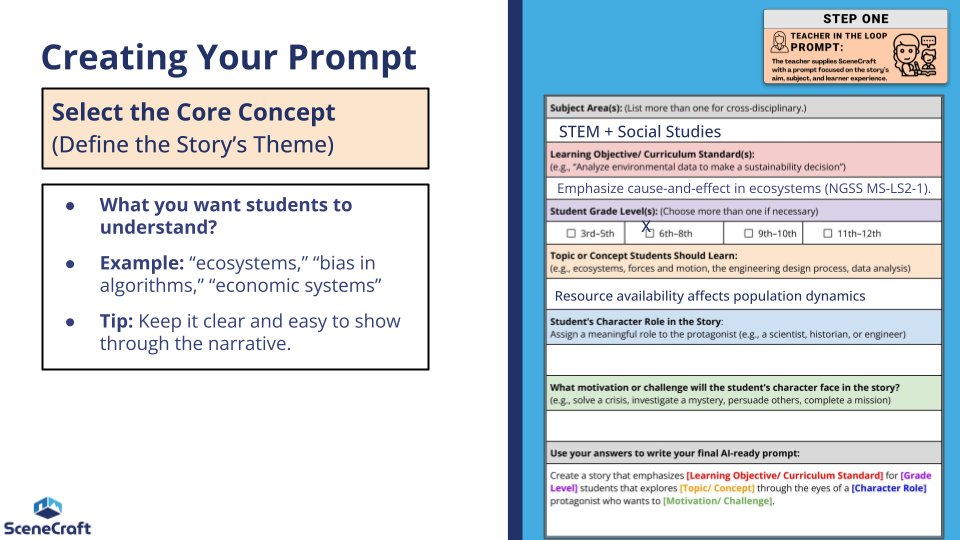
Select the core concept
The core concept defines what your story is really about. Choosing a clear, focused idea—like ecosystems or bias in algorithms—helps the narrative reinforce key understandings through meaningful storytelling.
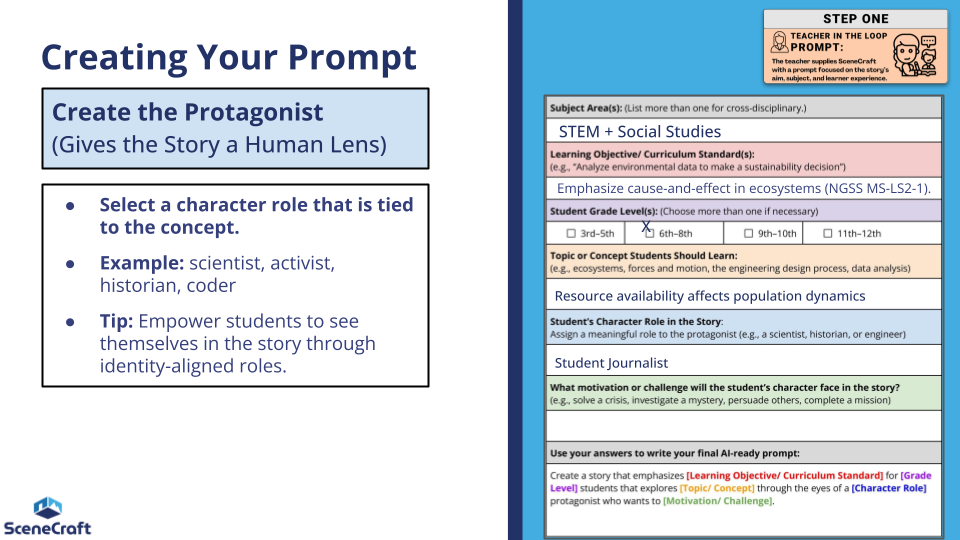
Create the protagonist
Choosing a protagonist gives your story a relatable, human perspective. Selecting a role tied to the concept—like a scientist or historian—helps students connect to the narrative and see themselves as active participants in the learning.Choosing a protagonist gives your story a relatable, human perspective. Selecting a role tied to the concept—like a scientist or historian—helps students connect to the narrative and see themselves as active participants in the learning.
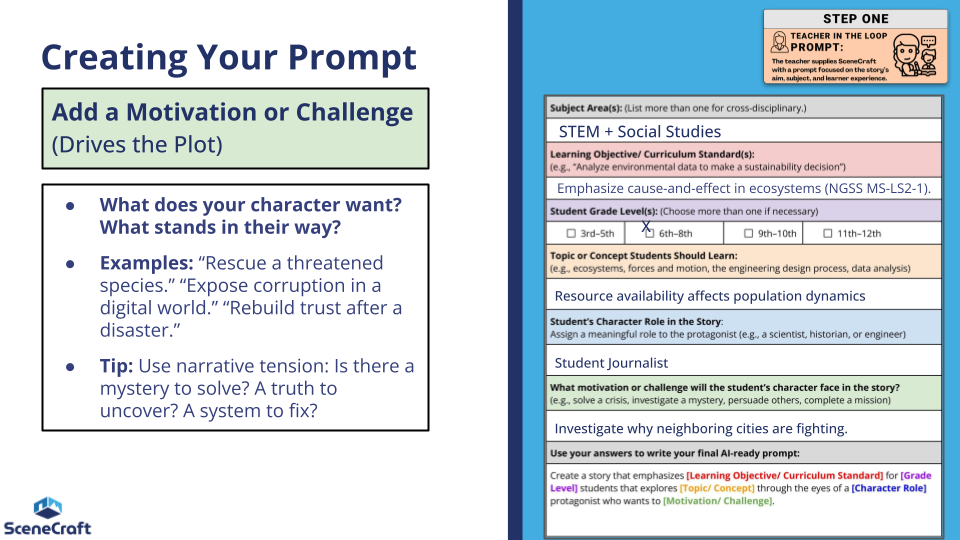
Add a Motivation or Challenge
A strong motivation or challenge gives your story momentum and purpose. By defining what the protagonist wants—and what obstacles they face—you create narrative tension that keeps students engaged while deepening their understanding of the core concept.
Creating Your SceneCraft Prompt
Discover how to craft clear and creative prompts that effectively guide the AI and align with your lesson objectives.
SceneCraft Teacher Resources
Access teacher guides and other resources to help use SceneCraft in your classroom
Navigating the Authoring Tool
Get familiar with the SceneCraft interface and learn how to build, edit, and customize your story scenes with ease.
SceneCraft Story Lesson Integration
Discover how to connect your SceneCraft story to classroom learning with tips, examples, and planning tools.